

Setting Auto Power Off
The product turns off automatically if it is not operated for 4 hours, such as when there are no scanning or other operations.
To disable this setting, follow the procedure below.

Log on using an account with Administrator privileges.
-
Click the [Start] button, then click [All apps] – [Canon D40II] – [Canon imageFORMULA Driver Setting Tool] in that order.
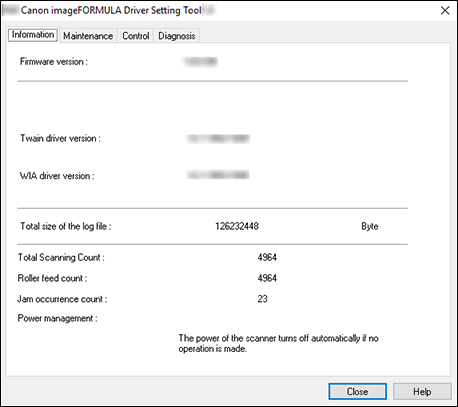
Canon imageFORMULA Driver Setting Tool will start.
-
Click the [Control] tab.
-
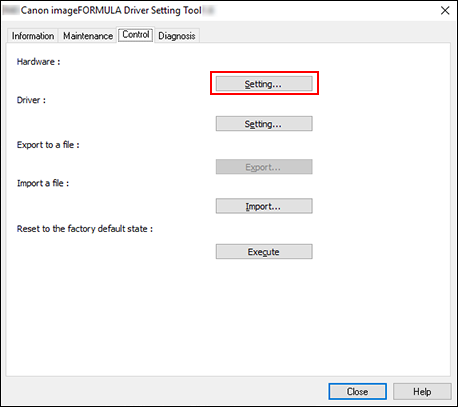
Click the [Setting] button under [Hardware].
-
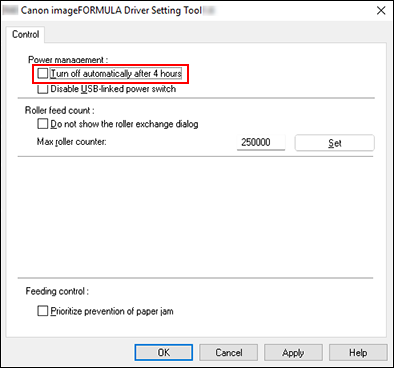
Uncheck [Turn off automatically after 4 hours].
-
Click [OK].
-
Click [Close] to close Canon imageFORMULA Driver Setting Tool.